New · Orders
October 10, 2026
Add an order's parts in one go and spread them across stages
Add lines on the Materials & production tab of an order or a route now opens a table instead of a drawer. Add as many lines as you need, each with one part or material, whether it's made, processed or used, the quantity and the stage, then save them all at once. Type a SKU that doesn't exist yet and it's created when you save.
Each line only offers what its item can do: a material is used, a purchased part is used or processed, and a part you make can be made, processed or used. Pick an item and the line switches to a flow it allows.
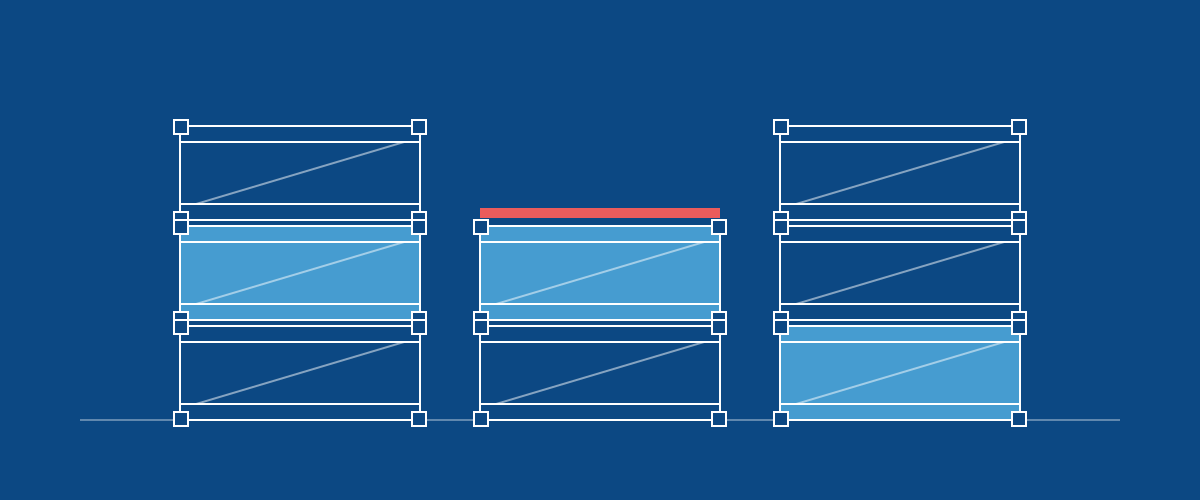
The stage list shows each component's stages under the component's name, and you can search it by component or stage. On a component's page it lists only that component's stages, plus Order level if a line needs to go back to the order. New lines start at the component's first stage.
After an import, select the lines still at the order level and choose Assign stages. For parts, pick where they're Made at and Used at; they're processed at every stage in between, with the same quantity at each. For materials, pick where they're Used at.
Order imports also take a Flow column (Made, Processed or Used), so a sheet can bring in made and processed parts as well as materials. Leave it blank for materials.
Fixed: completing a stage on an order of more than one unit now records every part planned at that stage. Before, a part that came from the route was recorded for one unit only, so a later stage that used the parts could take more than had been made.